Apple Cluster USB Edition — Beginner Install Guide
This guide walks you through installing EasyClick Apple cluster USB edition control center and screen mirroring with screenshots: product downloader → offline main IPA → trust the app → start automation → open the new mirroring UI. Built for first-time Apple cluster USB edition users.
Before you start
- A Windows PC (install the control center via the product downloader)
- An iPhone connected to the PC with a USB cable
- i4Tools / AiSi assistant (to install the IPA)
- Access to the official download area (to get the offline main IPA)
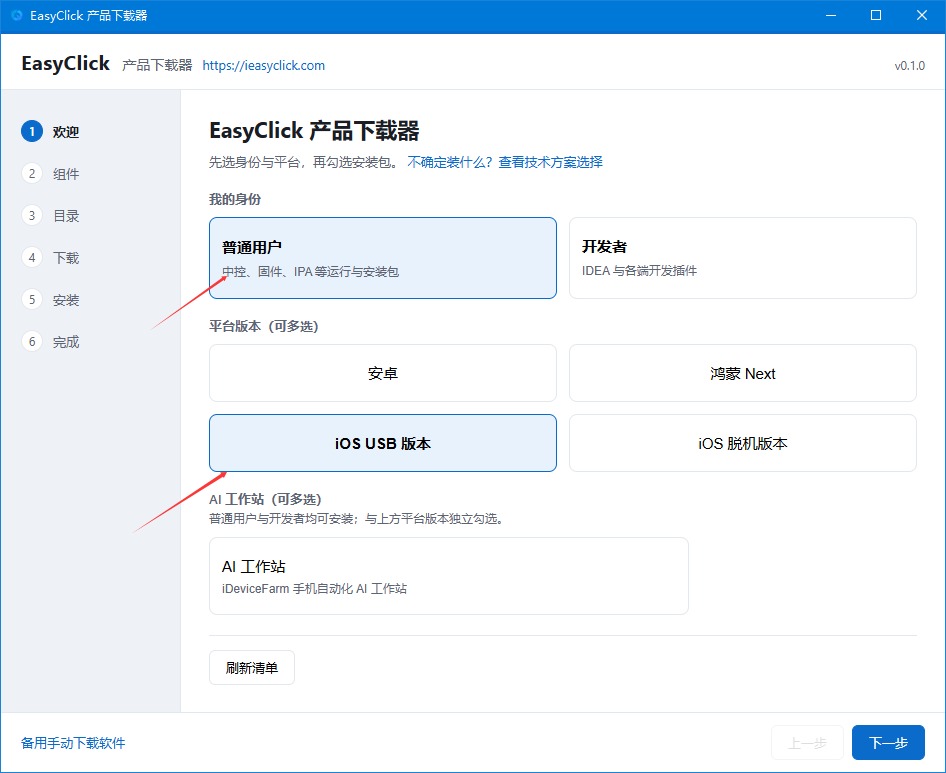
1. Open the product downloader and pick identity / platform
Download and open the EasyClick product downloader:
- On this site: Download the product downloader
- Software downloads: Download area
After it opens:
- Set My identity to Regular user
- Under Platform version, check iOS USB version
- Click Next
2. Select required components
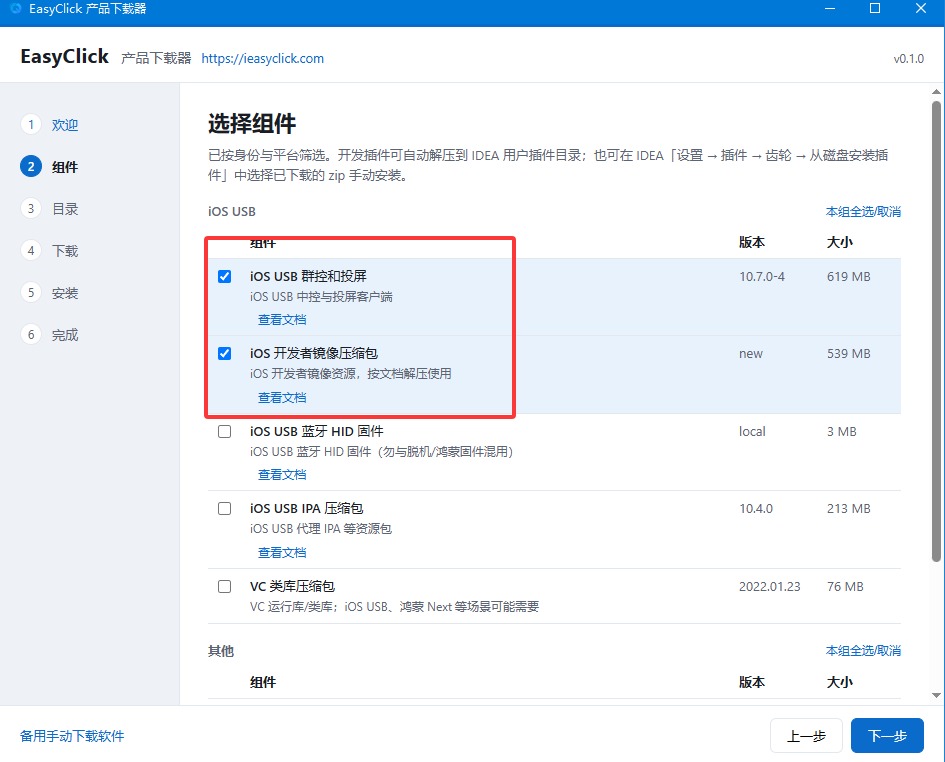
On the Components page, check both required items:
- iOS USB cluster control & screen mirroring
- iOS developer disk image package (required — download it; needed after USB connect for mounting the image and starting automation)
Then click Next.
3. Choose the install directory
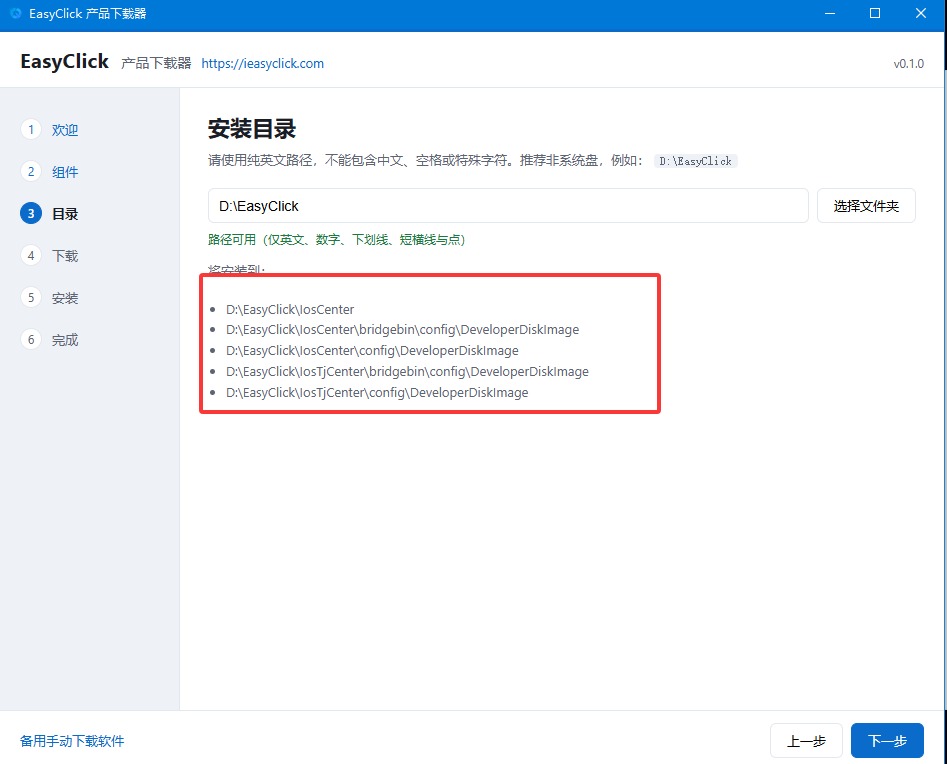
Use a pure English path — no Chinese characters, spaces, or special symbols. The default like D:\EasyClick is usually fine. Confirm and click Next.
4. Wait for downloads to finish
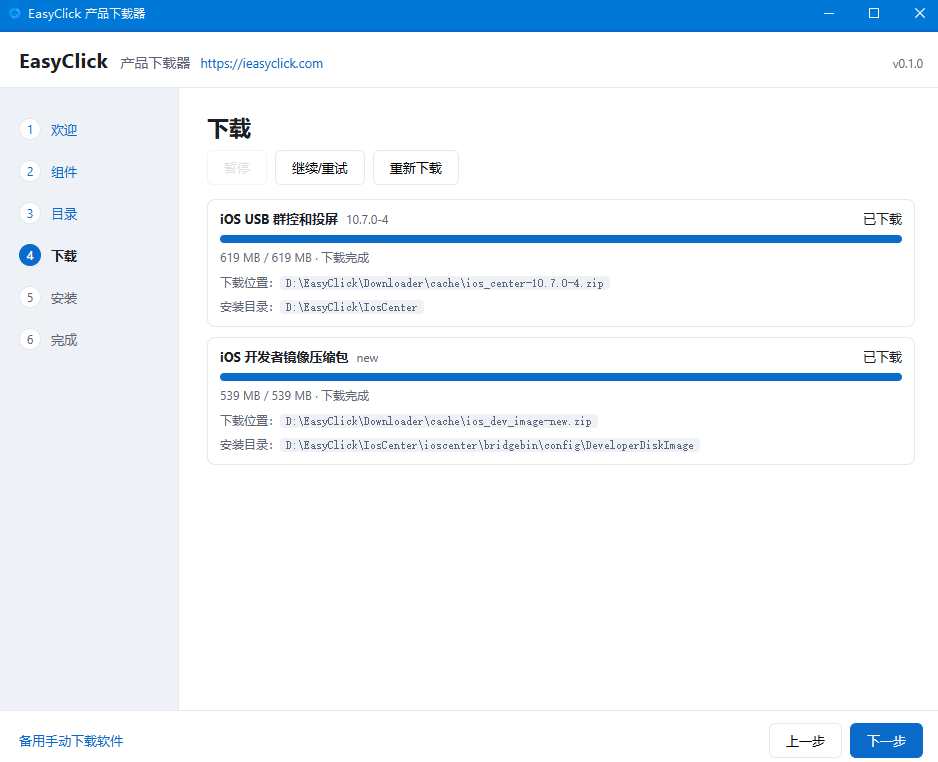
The download page pulls cluster control & mirroring and the developer disk image. When both show Downloaded / Complete, click Next.
5. Finish install and open the cluster folder
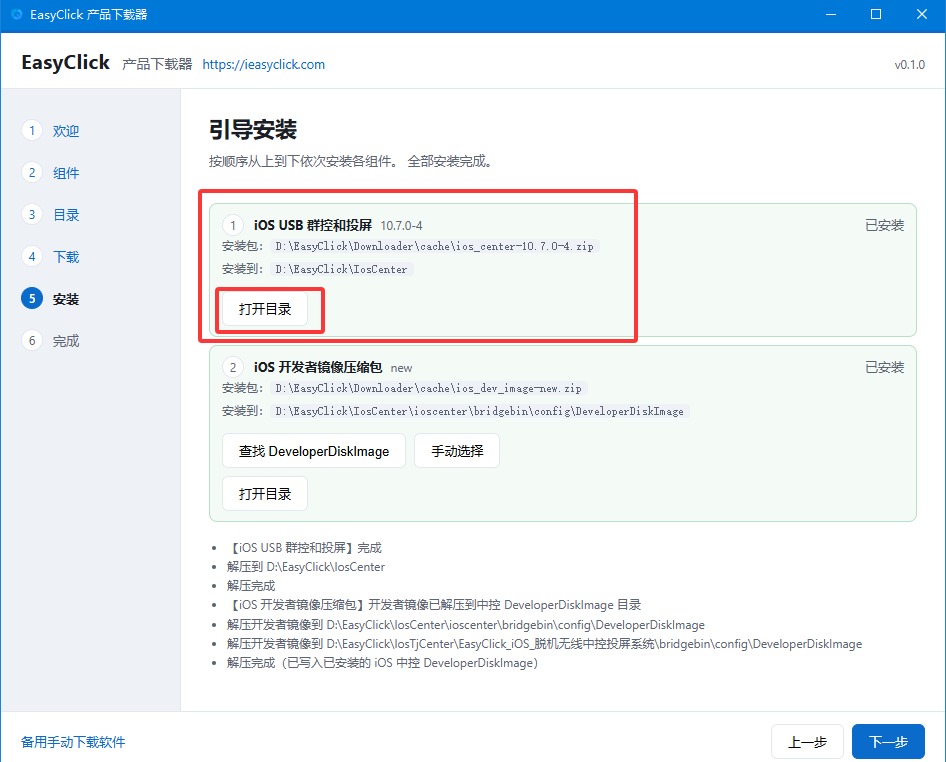
Complete the installer. On the finish page, find iOS USB cluster control & screen mirroring, then click Open folder.
6. Start the control center and sign in
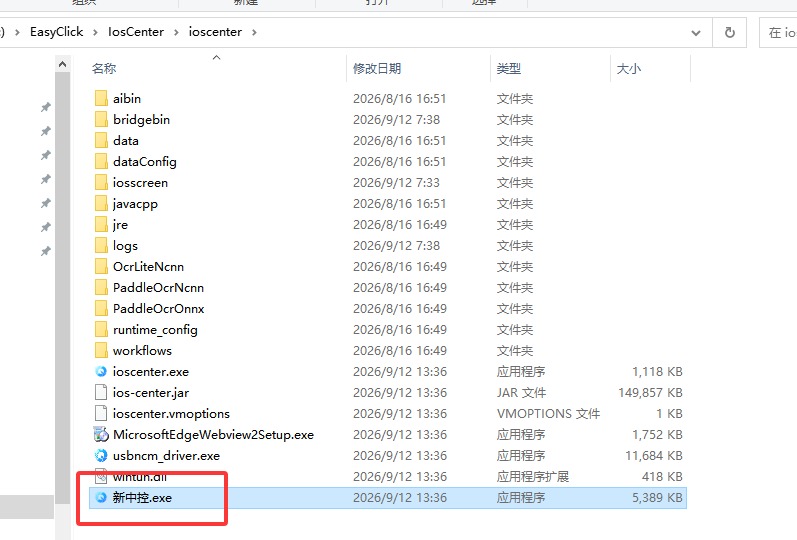
In the install folder, double-click 新中控.exe to open the control center. Register and sign in as prompted.
7. Download the offline main IPA
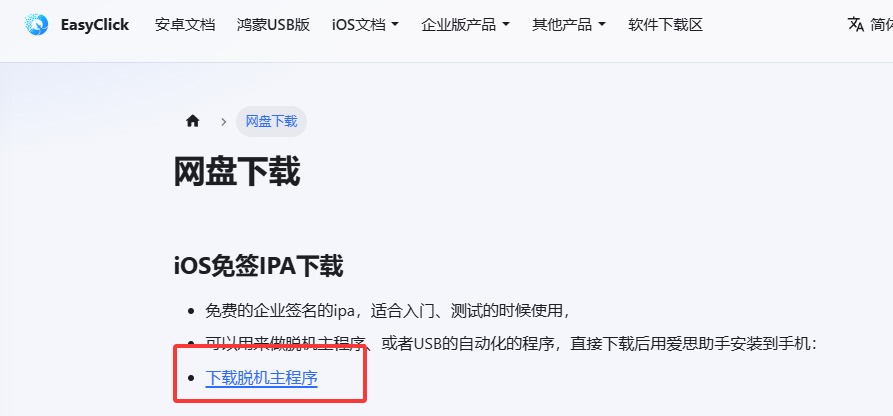
Next, install the IPA on the phone: open the site Download area, then click Download offline main app to get the file.
8. Import and install with i4Tools
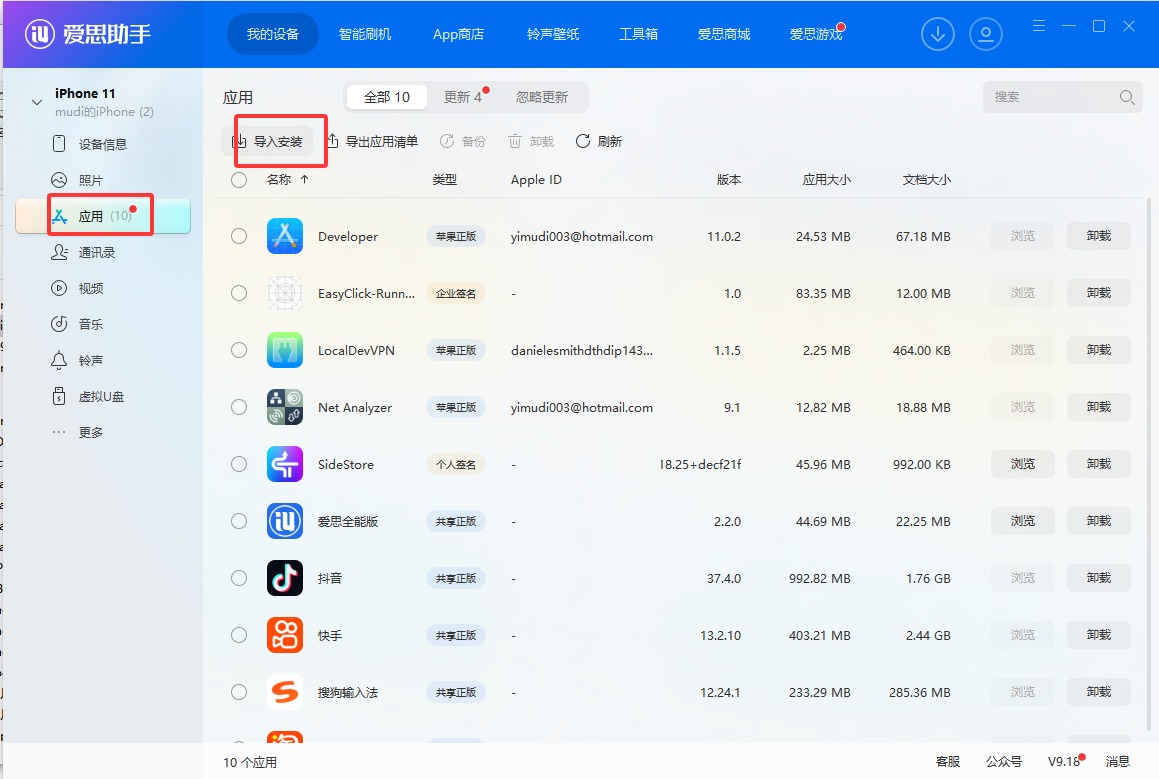
- Open i4Tools (AiSi) and confirm the phone is detected
- Open the phone Apps section
- Click Import install and select the IPA you downloaded
9. Open the installed app
After install, open 易点云测签名版 (or the icon for your offline main app). The first launch usually shows app verification / trust prompts.
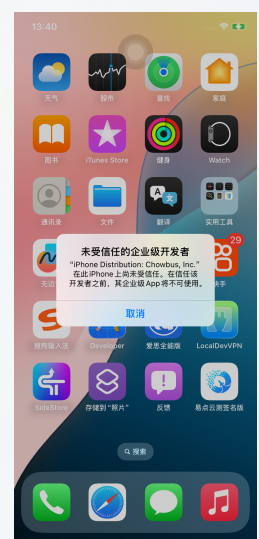
10. Trust the profile in Settings
On the phone go to Settings → General → VPN & Device Management (wording may vary), find the new profile / developer app, and tap Trust.
After trusting, turn on Developer Mode (usually required on iOS 16+; otherwise automation / mirroring often fails):
- On the phone: Settings → Privacy & Security → Developer Mode, enable it, restart when prompted, then confirm again
- Or in the control center device list, right-click the device → Enable Developer Mode
- Or in i4Tools / AiSi, click Live screen / Real-time mirroring: if it prompts you to enable Developer Mode, follow that prompt to turn it on
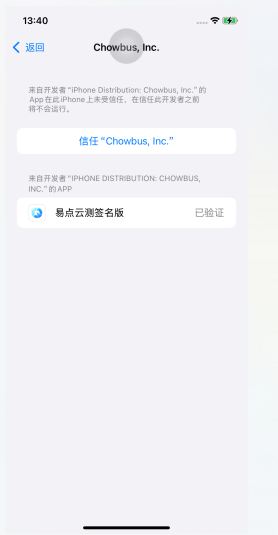
11. Grant app permissions
Open the app again after trusting. Allow all permission prompts. You can also finish permissions under in-app Permission grant.
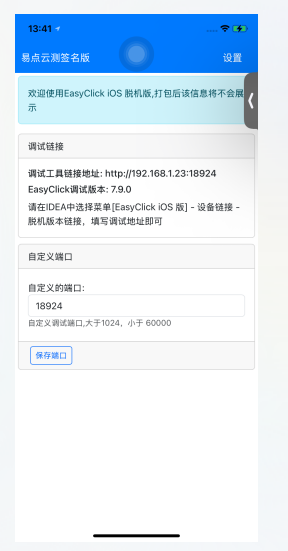
12. Start automation in the control center
Back in the control center, confirm the phone is connected with a USB cable.
:::tip How to confirm the developer disk image is mounted
- Make sure the downloader checked and downloaded the iOS developer disk image package
- Plug in the device over USB, then open the control center
- Click the Developer disk image button in the control center and check the status: if it shows Mounted / Flashed (已刷入), the image was applied successfully
- After the phone reboots, the image usually clears — you must mount / flash it again :::
:::tip If the exact iOS version image is missing If there is no image for the phone’s version (for example no 27.0), reuse a nearby version:
Image folders are under the control-center install directory:
{control-center install dir}\bridgebin\config\DeveloperDiskImage\
Each subfolder name is a version (e.g. 26.5, 27.0).
- Open the DeveloperDiskImage folder above
- Copy a nearby version folder (for example 26.5)
- Rename the folder to the target version (for example 27.0)
- Restart the control center and the iPhone
- Connect over USB, then click Developer disk image in the control center and confirm it shows Mounted / Flashed :::
Click Start automation. After a moment, automation status should become Yes.
If it never becomes Yes, right-click the device → Test automation and troubleshoot from the error.
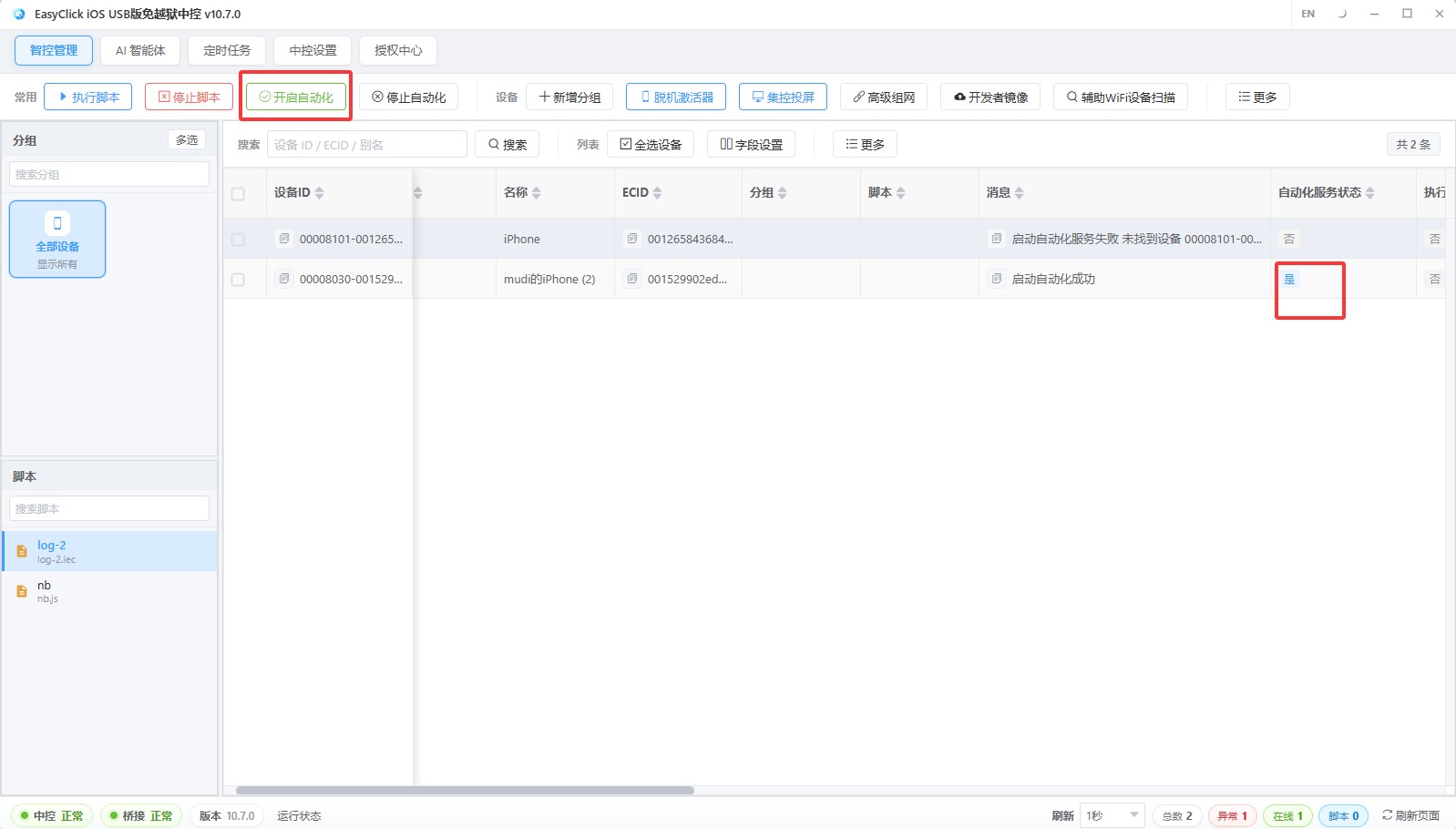
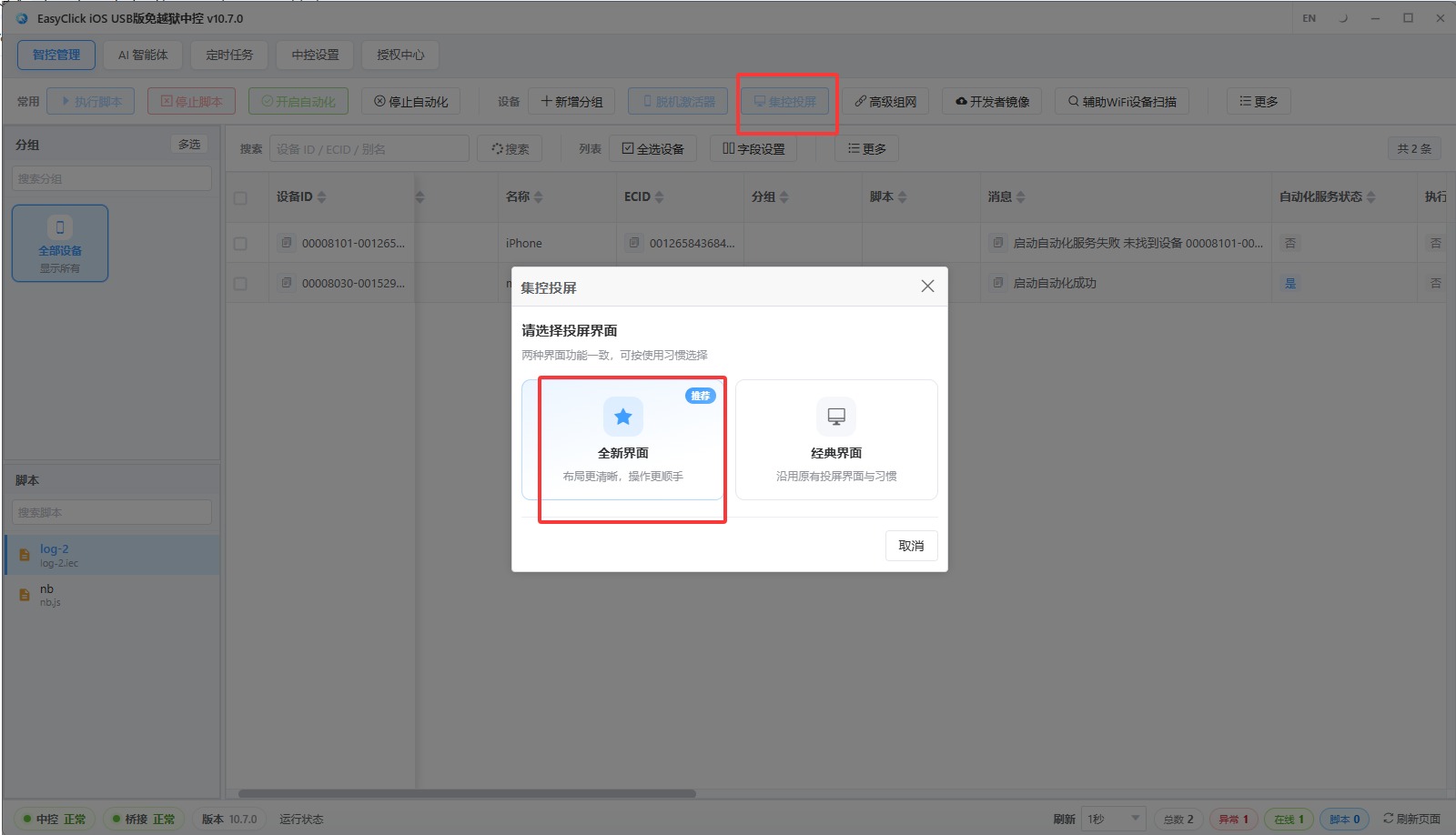
13. Open group screen control (New UI)
In the control center click Group screen control, choose New UI, and open the mirroring window.
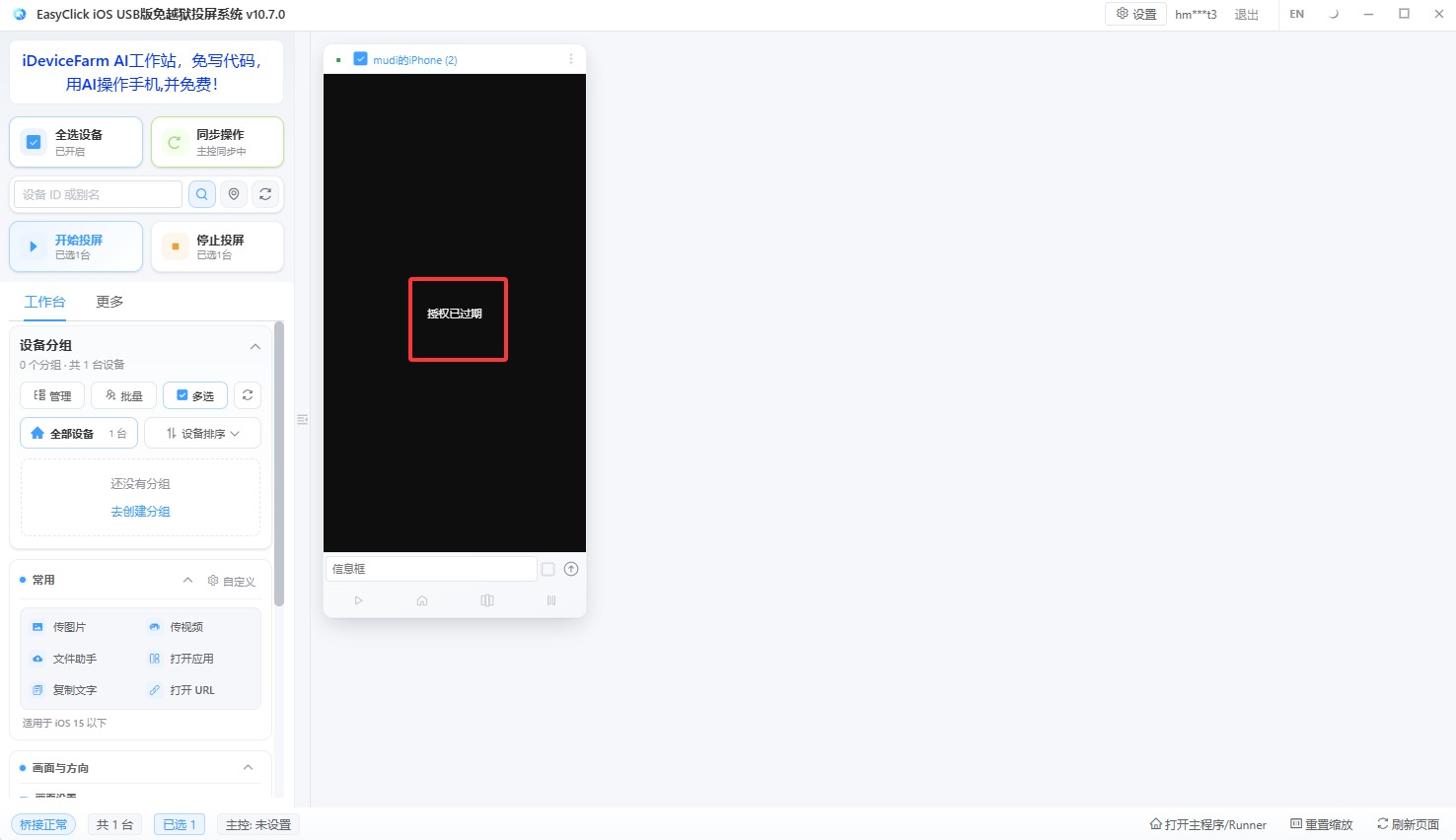
14. Check the USB mirroring license
If you see a missing or expired USB screen mirroring license: buy from your reseller or official channel, then bind it in License center as USB screen mirroring license (not the separate USB device license).
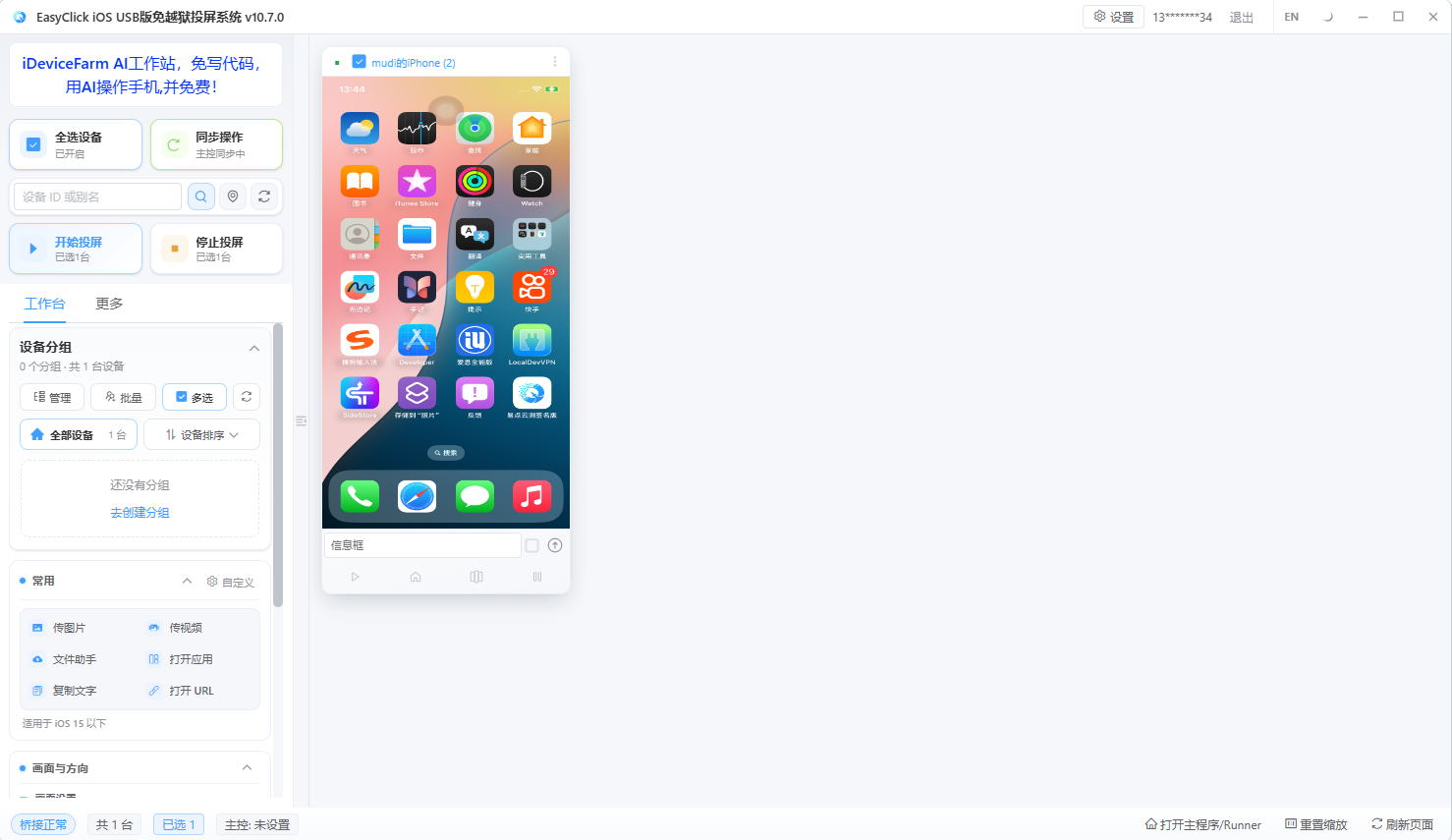
15. Mirror again and confirm the screen
With a valid license, start mirroring again — you should see the phone screen.
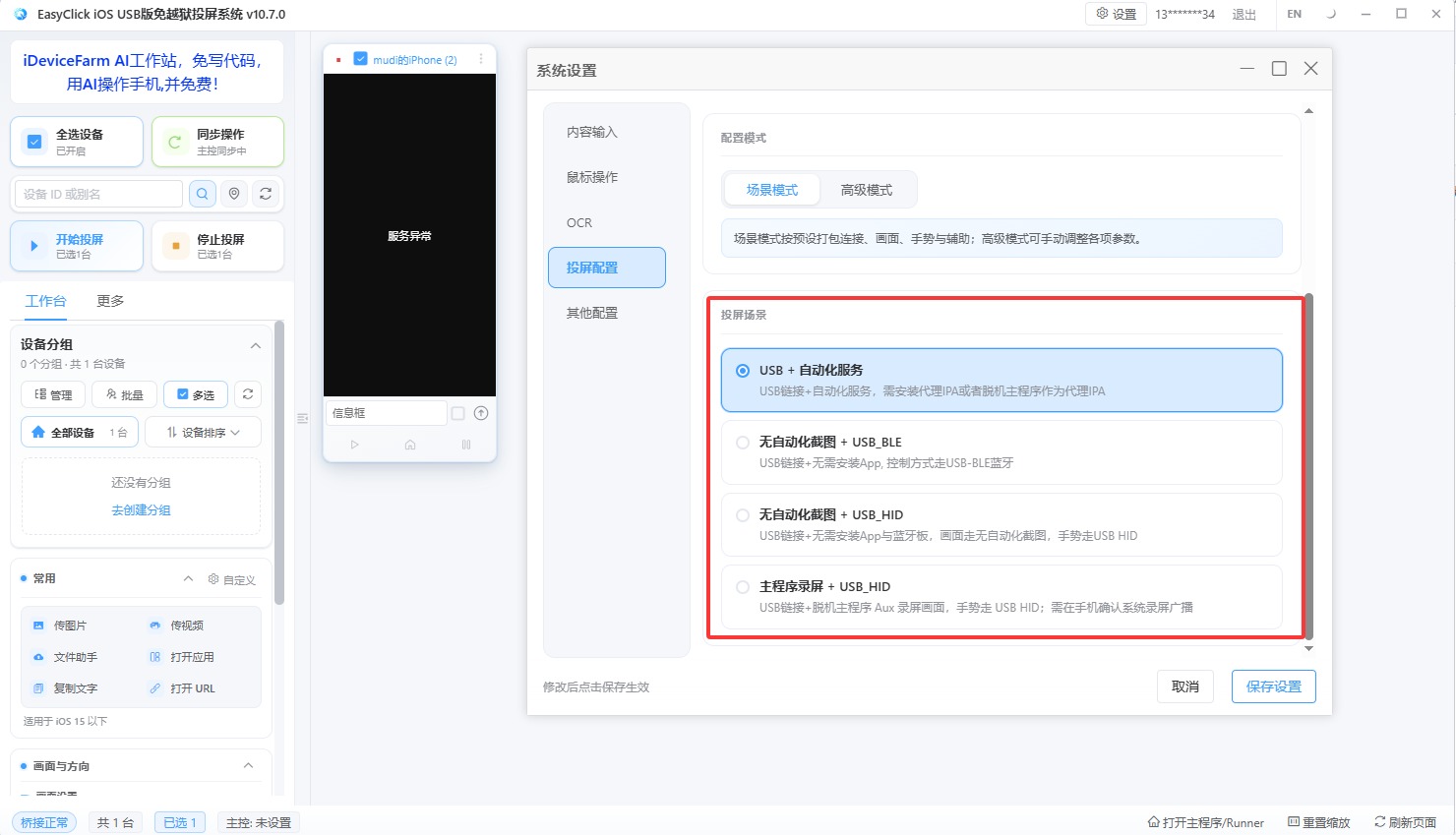
16. More advanced settings
In the mirroring window System settings you will find more options (scene modes, per-screen config, etc.). Tune them for your workflow.
What to do next
| Goal | Where to go |
|---|---|
| Tap, swipe, type, photo transfer in mirroring | New UI operation guide |
| Disk images, proxy, Bluetooth / OTG, full reference | iOS USB screen mirroring tutorial |
| Legacy UI | Legacy UI guide |
Common pitfalls:
- Missed / did not download the developer disk image → automation / mirroring often fails
- Control center Developer disk image is not Mounted / Flashed → reconnect over USB and remount; remount again after every reboot
- Exact version image missing → under the control-center install dir, open
bridgebin\config\DeveloperDiskImage, copy a nearby version folder and rename it (e.g. 26.5 → 27.0), restart the control center and iPhone, then remount; check via the Developer disk image button - Install path has Chinese or spaces → reinstall to a pure English path
- Browser deleted the IPA → download again and choose Keep
- Profile not trusted / Developer Mode off / permissions missing → automation will not start
- Only device license, no USB screen mirroring license → device connects but mirroring reports expired
- Odd failures (cannot connect, automation fails, black screen, etc.) → confirm the image is mounted first; restart the iPhone only if needed (then remount), and quit/reopen the cluster control software
- Control-center status bar stays red / center will not start → PC may be missing VC libraries; download the VC libraries zip from the product downloader, install it, then restart the computer and open the center again
- Automation start fails with
use of closed network connection→ in control center settings, set Local bridge → Automation connection to Use a new connection each time, then retry; do the same if mirroring UI cannot start automation - Antivirus / Security Center / firewall still on → may block programs or local traffic; turn them off, then restart the PC and retry
- Automation start fails with
receive packet: Invalid Service→ Developer Mode is off on the phone; enable it per step 10 above, then retry - Error like
write tcp 127.0.0.1:…->127.0.0.1:27015: wsasend: An established connection was aborted by the software in your host→ usually the firewall; turn it off and restart the PC. You can also use i4Tools / AiSi → Driver repair, then Reset Winsock when prompted, and retry - Cluster control does not show the phone → first check in i4Tools / AiSi whether the device is detected; then run Driver repair, Reset Winsock, turn off antivirus / firewall / Security Center, and restart the PC before opening the control center again
Enable USB HID mode (optional)
USB HID taps and swipes over the USB cable. It does not need a Bluetooth or OTG board. The phone must be iOS 17 or later. On older iOS, keep using Start automation / USB + automation service from earlier steps.
- Open the mirroring client and go to System settings → Scene mode
- Pick one:
- No automation screenshot + USB_HID: no app on the phone; USB connection is enough (simplest)
- Main-app recording + USB_HID: smoother picture; the offline main IPA must already be installed. The system first captures screenshots to show the screen, then opens the main app and shows the live-broadcast dialog — tap Start Broadcast (开始直播)
- Click Start mirroring. If you chose main-app recording, you will first see the captured screen, then the main app opens with the broadcast prompt — tap Start Broadcast, then use the mouse to tap and swipe
If mouse taps do nothing: on the device thumbnail or device list, right-click → USB HID → Rebuild USBHID session, then try again.
More detail: New UI operation guide and USB HID events.
Troubleshooting
Cluster control does not show the phone
If the control center / cluster UI does not list the phone:
- Confirm the USB cable is plugged in and the phone has tapped Trust This Computer
- Open i4Tools / AiSi and check whether it detects the device (if AiSi also cannot see it, try another cable / USB port first, then continue)
- In i4Tools / AiSi, run Driver repair; when the post-repair dialog appears, click Reset Winsock
- Turn off antivirus, firewall, and Security Center
- Restart the PC, reopen the control center, plug the phone in again, and check whether it appears
Automation start fails with receive packet: Invalid Service
If Start automation fails with an error containing receive packet: Invalid Service, Developer Mode is not enabled on the phone. Turn it on as in step 10 above (Settings, control-center right-click, or i4Tools live-screen prompt), confirm it stays on after any required reboot, then retry.
Error wsasend: An established connection was aborted by the software in your host
If you see something like:
write tcp 127.0.0.1:62200->127.0.0.1:27015: wsasend: An established connection was aborted by the software in your host
this is usually the local firewall (or Security Center / antivirus) blocking localhost traffic. Try:
- Turn off the firewall, Security Center, and antivirus, then restart the PC and open the control center again
- In i4Tools / AiSi, run Driver repair; when the post-repair dialog appears, click Reset Winsock, and keep the firewall off
- After repair / reset, restart the PC, then reopen the control center and start automation again
Automation start fails with use of closed network connection
If Start automation fails in the control center or mirroring UI with an error like use of closed network connection:
- Open Control center settings
- Find Local bridge → Automation connection
- Set it to Use a new connection each time
- Try Start automation again
If the mirroring UI cannot start automation either, make the same change and retry.